

Available on: All plans | Role: Anyone | Status: Generally Available
Sign Up Options
Singularity AI offers multiple ways to create your account:| Method | Available On | Description |
|---|---|---|
| Email & Password | All plans | Traditional signup with name, email, and password |
| Google SSO | All plans | One-click sign-in with your Google account |
| Microsoft SSO | Professional, Enterprise | Sign in with your Microsoft account |
| Enterprise SSO | Professional, Enterprise | Azure AD, Okta, Google Workspace, or Custom SAML |
| Invitation Link | All plans | Sign up through an email invitation from your admin |
Sign Up with Email & Password
Open the Sign-Up Page
Navigate to the authentication page and click “Sign up” at the bottom of the form.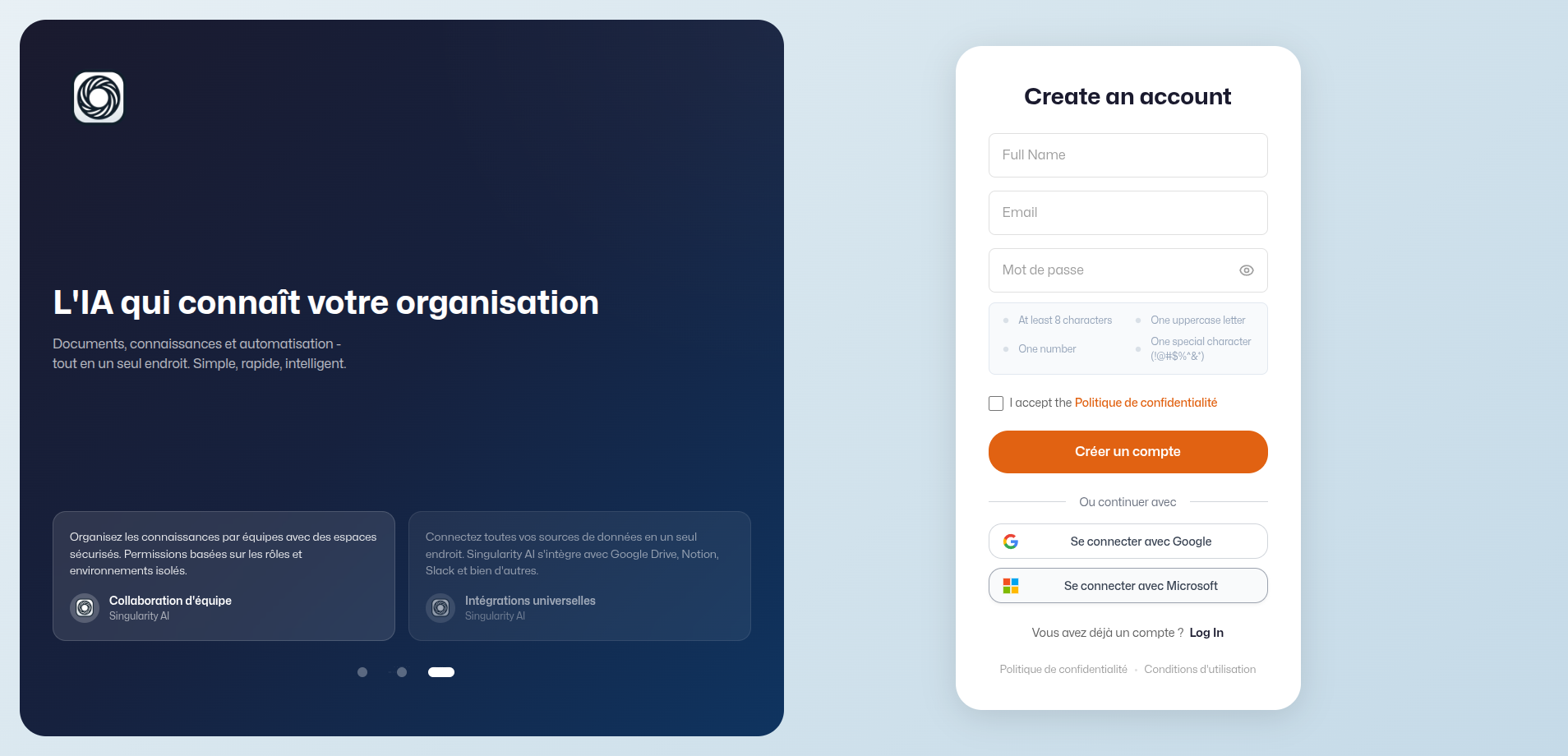
Fill In Your Details
Enter your full name, email address, and a password that meets the security requirements:
- At least 8 characters
- At least one uppercase letter
- At least one number
- At least one special character (e.g.,
!@#$%^&*)
Sign Up with SSO
Click the Google or Microsoft button on the sign-in page. You’ll be redirected to your identity provider to authenticate, then returned to Singularity AI.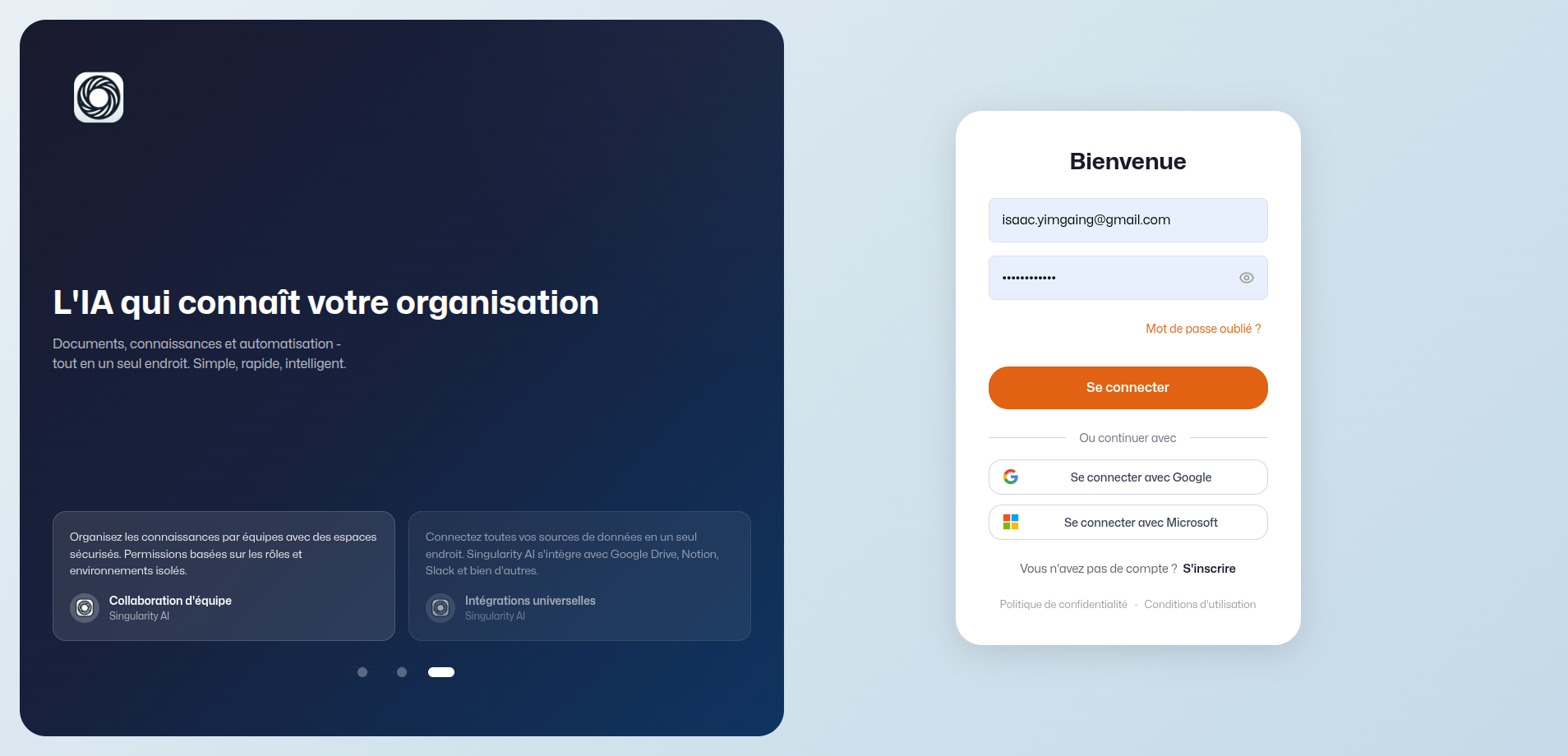
Enterprise SSO
If your organization uses Azure AD, Okta, Google Workspace, or a custom SAML provider, your admin will configure this in the SSO settings. Once configured, you’ll see a dedicated SSO button on the sign-in page.Password Recovery
Forgot your password? Click “Forgot Password?” on the sign-in page:- Enter your email address
- Check your inbox for a reset link
- Click the link and set a new password
Invitation-Based Signup
If an admin invites you via email:- Click the invitation link in the email
- Your email is pre-filled and linked to the organization
- Complete the sign-up form with your name and password
- You’re automatically added to the organization