

Available on: Starter+ | Role: Admin+ | Status: Generally Available
Connection Dashboard
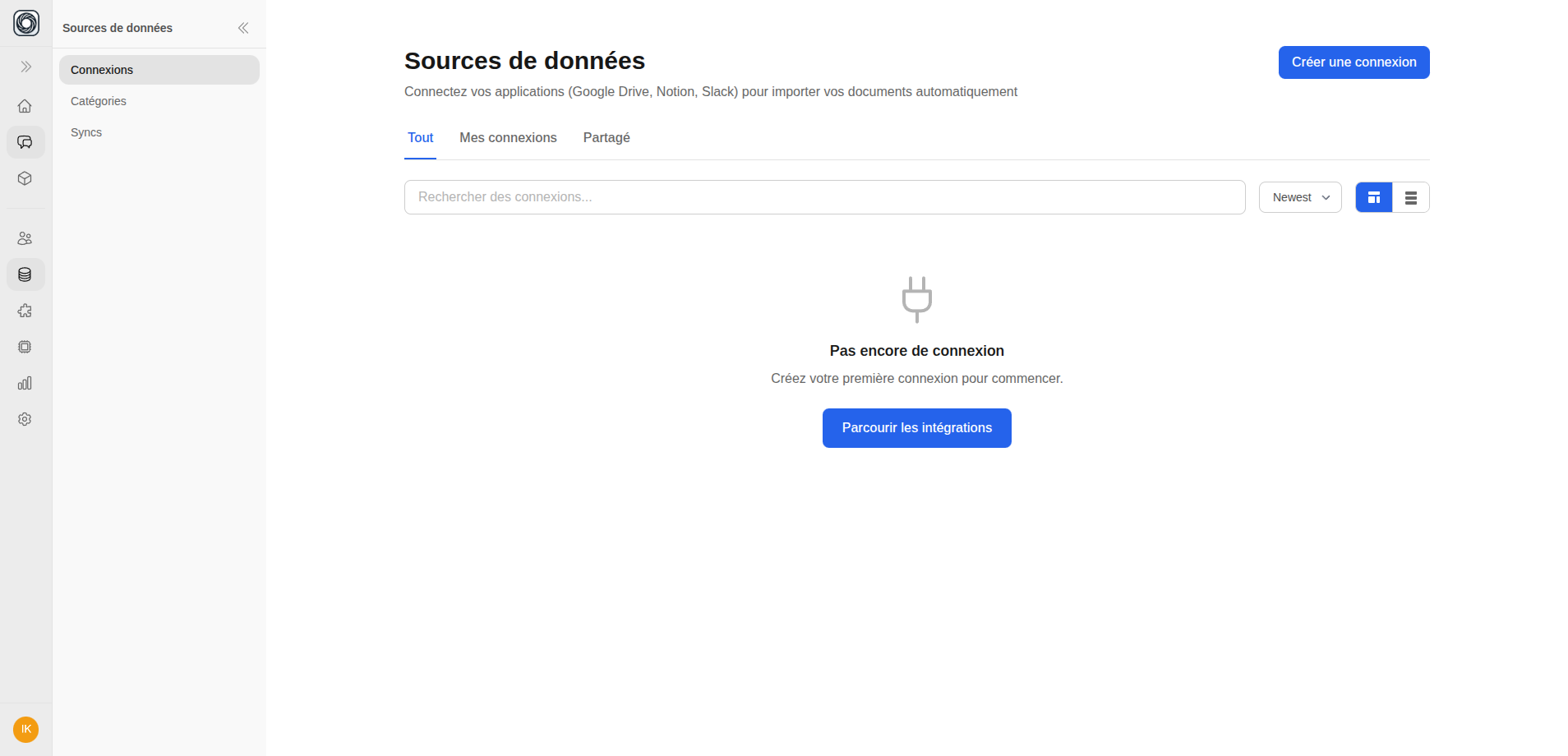
Navigate to Workspace > Data Connections to see all your organization’s connections. Each connection card shows:- Connection name and source type
- Status (active, syncing, error)
- Document count
- Last sync timestamp
Namespaces
Namespaces are organizational groupings for your documents. Use them to categorize documents by department, project, or any other logical boundary.- Navigate to Data Connections > Namespaces to manage them
- Each connection has a default namespace
- Documents can be assigned to namespaces during upload
- Namespaces support AI-assisted description optimization
- Use namespaces as RAG filter criteria in chat
Monitoring Syncs
The Syncs dashboard shows real-time sync activity:| Column | What It Shows |
|---|---|
| Connection | Which connection is syncing |
| Status | Current sync state |
| Documents | Number of documents processed |
| Started | When the sync began |
| Duration | How long the sync has been running |
Document Management
From a connection’s detail page, switch to the Documents tab to:- View all documents with status indicators
- Search and filter documents
- Add tags to individual documents
- Delete documents (90-day recovery window)
- Monitor processing progress
Linking to Teamspaces
Connections must be linked to teamspaces for the AI to use them:- Go to Teamspaces > [Name] > Data Connections
- Click Link Connection
- Select the connection to link
- The teamspace’s AI can now access those documents