

Available on: All plans | Role: Admin+ access the management page; Users manage their apps via AI Box setup | Status: Generally Available
Your Connected Apps
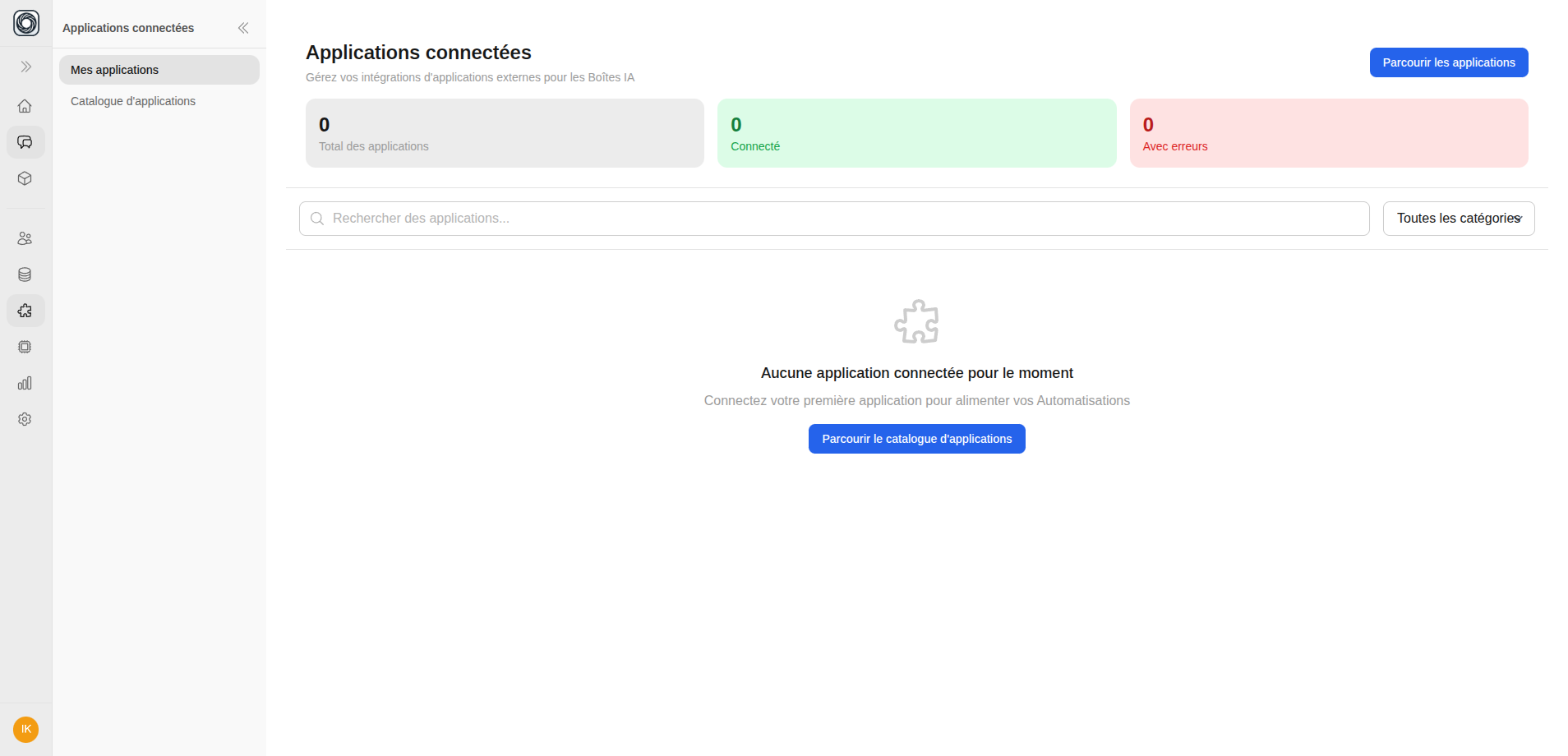
Navigate to Workspace > Connected Apps to see all your connected applications. Each app card shows:- App name and icon
- Connection status (Active, Error, Expired)
- Authentication method used
- When it was connected
Testing a Connection
Click Test Connection on any app card to verify it’s still working. This sends a test request to the external service and reports back.Disconnecting an App
Review Impact
If the app is used by any AI Boxes, you’ll see a warning listing the affected boxes. Disconnecting will prevent those boxes from accessing the app.
Troubleshooting
| Issue | Solution |
|---|---|
| Connection expired | Re-authenticate by clicking Reconnect |
| Connection error | Check that the external service is accessible, then test the connection |
| Missing permissions | Disconnect and reconnect, granting all requested permissions |
| OAuth popup blocked | Allow popups for Singularity AI in your browser settings |