

Available on: All plans (limits vary) | Role: Admins create, Users browse | Status: Generally Available
Overview
Teamspaces are dedicated chat environments for your teams — think of them as a ChatGPT for each team. Each teamspace can be connected to data sources, configured with AI models, and assigned specific members. The AI in each teamspace searches connected documents at query time to provide relevant answers.Who Can Do What
| Action | Owner | Admin | User |
|---|---|---|---|
| Create teamspace | Yes | Yes | No |
| Edit teamspace settings | Yes | Yes | No |
| Delete/archive teamspace | Yes | Yes | No |
| Manage members | Yes | Yes | No |
| Assign AI models to teamspace | Yes | Yes | No |
| Browse & subscribe | Yes | Yes | Yes |
| Chat in teamspace | Yes | Yes | Yes |
| Request access | Yes | Yes | Yes |
Creating a Teamspace
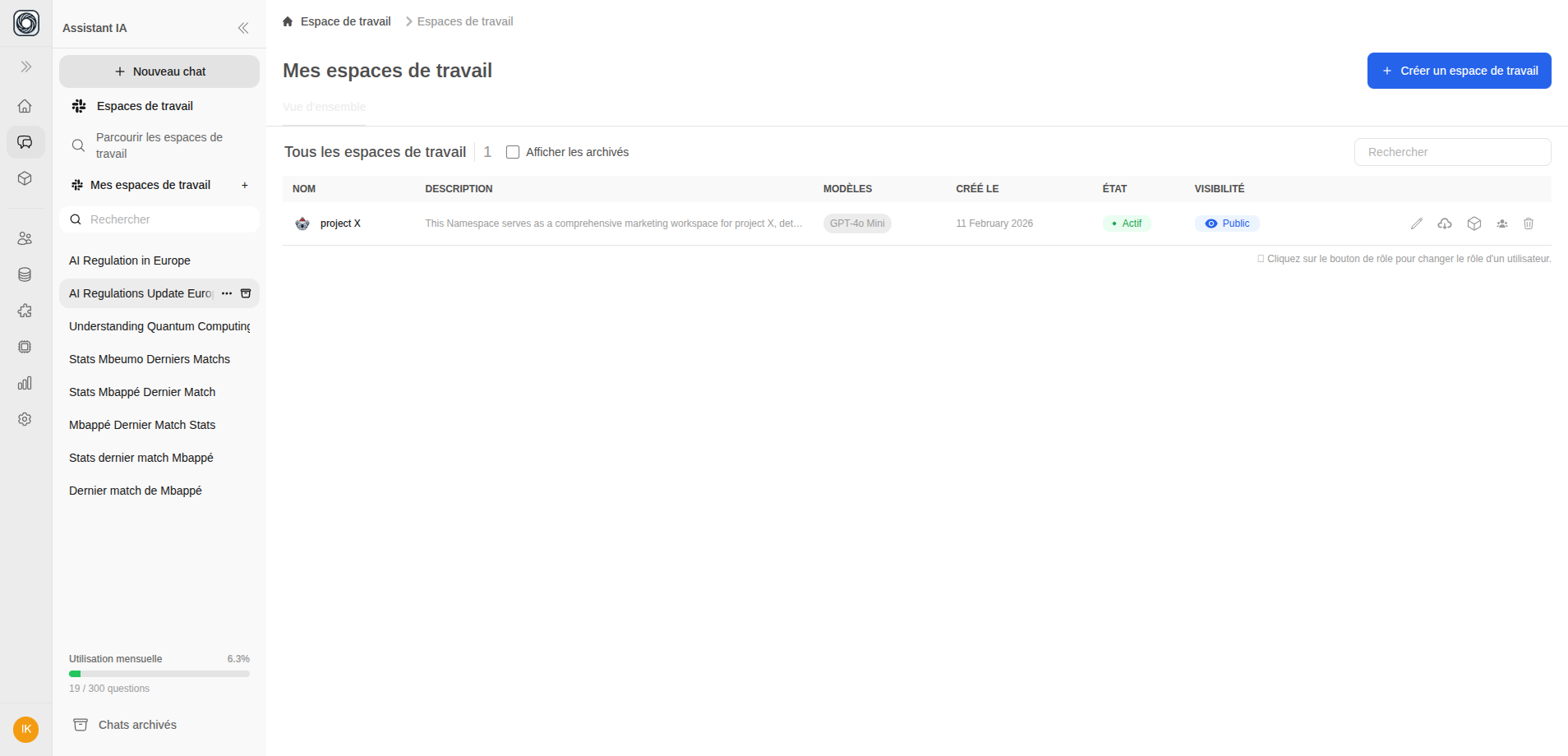
General Settings
Configure the basics:
- Name — A descriptive name for the teamspace
- Description — What this teamspace is for
- Visibility — Public (discoverable by all org users) or Private (only invited members)
- Chat Image — Optional custom avatar for the AI assistant
Capabilities
Assign AI models for different tasks:
- Conversation — Primary chat model
- Vision — Image understanding
- Tools — Function calling
- Moderation — Content filtering
Create a teamspace →
Open Teamspaces and create your first workspace
Browsing Teamspaces
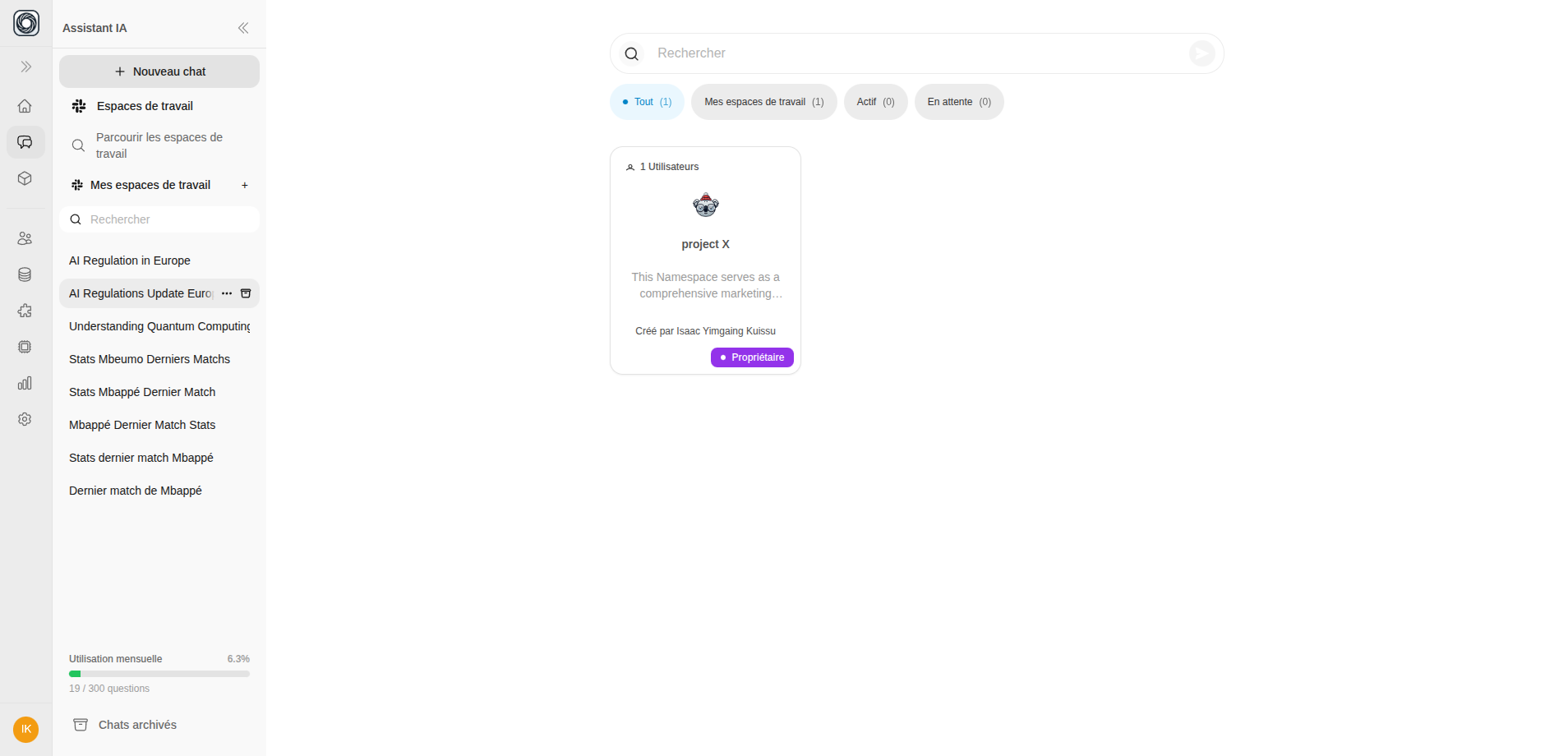
Regular users can browse available teamspaces at Browse Teamspaces:- Public teamspaces appear in search results for everyone
- Private teamspaces are only visible to members and admins
- Click Subscribe to join a public teamspace
- Click Request Access for private teamspaces — an admin will review your request
Managing Members
Admins can manage who has access to each teamspace:- Open a teamspace’s member list from Teamspaces > [Name] > Members
- Add members — Search for org users and assign a permission level
- Remove members — Remove users from the teamspace
- Change permissions — Adjust access levels
Teamspace States
| State | Meaning |
|---|---|
| Active | Fully operational, users can chat |
| Deactivated | Temporarily disabled, no chat access |
| Archived | Soft-deleted, can be restored within 90 days |
Archiving vs. Permanent Delete
- Archive — Soft-deletes the teamspace. Connections are moved to the organizational pool. Can be restored.
- Permanent Delete — Irreversible. Destroys all data including conversations, documents, and configurations.
Plan Limits
| Plan | Max Teamspaces |
|---|---|
| Free | Limited |
| Starter | Limited |
| Professional | Limited |
| Enterprise | Unlimited |