

Available on: All plans | Role: Admin+ | Status: Generally Available
Overview
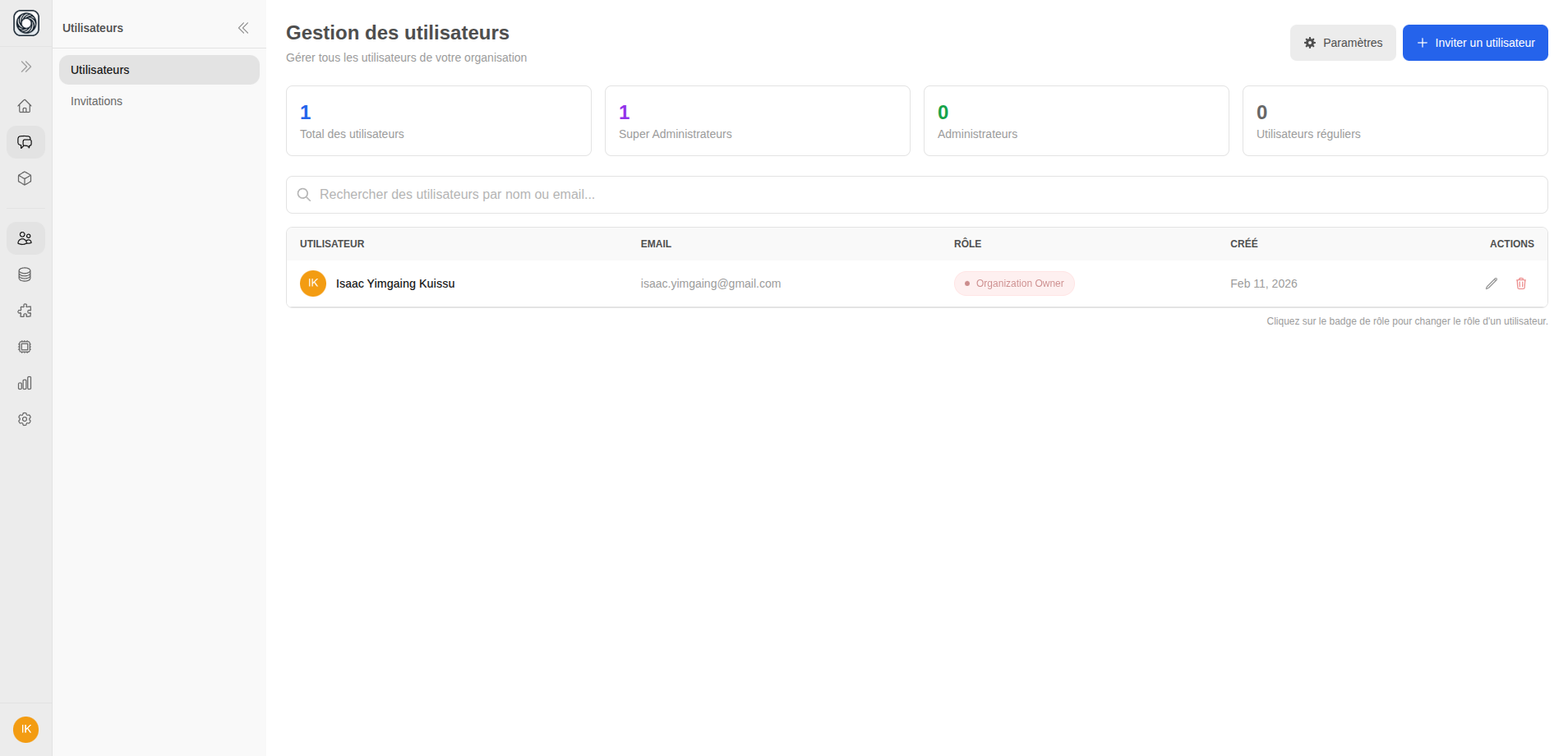
User management lets you control who has access to your Singularity AI organization. Invite new members, assign appropriate roles, and remove users when needed.Viewing Members
Navigate to Workspace > Users to see all organization members. Each member card shows:- Name and avatar
- Email address
- Role (Owner, Admin, User, Pending)
- Last active date
Inviting Members
Enter Details
Fill in:
- Email address — The invitee’s email
- Role — Admin or User
- Teamspaces — Optionally pre-assign teamspaces with permission levels
Invite team members →
Open User Management and start inviting your team
Managing Roles
Click a member’s role badge to change their role:| Role Change | Who Can Do It |
|---|---|
| User to Admin | Owner, Admin |
| Admin to User | Owner only |
| Pending to User/Admin | Owner, Admin |
| Any role on an Admin | Owner only |
Removing Members
Review Impact
A preview modal shows what will be affected:
- Teamspaces the member owns or belongs to
- Data connections they created
- Access grants they’ve given or received
Invitation Tracking
The Invitations tab shows all invitations with their status:| Status | Meaning |
|---|---|
| Pending | Waiting for the invitee to accept |
| Accepted | Invitee has signed up |
| Expired | 7-day window has passed |
| Cancelled | Manually cancelled by an admin |